---
title: How to install custom fonts in PowerPoint
description: Please be noted that custom fonts are supported only in the Microsoft PowerPoint app for now.
---
[Skip to content](https://pages.vibe.us/migration/custom-fonts-powerpoint#main-content)
English
Show submenu for translations
[Submit a Support Ticket Here](https://pages.vibe.us/migration/kb-tickets/new?hsLang=en)
![Vibe\_logo\_RGB\_NoText.png\]](https://pages.vibe.us/hs-fs/hubfs/Vibe_logo_RGB_NoText.png?height=40&name=Vibe_logo_RGB_NoText.png)
- [Default HubSpot Blog](https://vibe-2.hubspotpagebuilder.com/)
Open main navigation
Close main navigation
- [Default HubSpot Blog](https://vibe-2.hubspotpagebuilder.com/)
- English
Show submenu for translations
- [Submit a Support Ticket Here](https://pages.vibe.us/migration/kb-tickets/new)
- Go to Vibe.us
Go to Vibe.us
Hello! How can we help you?
- There are no suggestions because the search field is empty.
1. [Vibe Knowledge Base](https://pages.vibe.us/migration?hsLang=en)
2. [Vibe Product FAQ](https://pages.vibe.us/migration/vibe-product-faq?hsLang=en)
3. [Software](https://pages.vibe.us/migration/vibe-product-faq?hsLang=en#software)
# How to install custom fonts in PowerPoint
Please be noted that custom fonts are supported only in the **Microsoft PowerPoint** app for now.
Here are the step-by-step instructions:
1. **Install & launch PowerPoint**
Download and install PowerPoint from the Vibe app store. To learn how to download apps, please check out this video for [Using 3rd party apps](https://youtu.be/sLhud0K7NKM).
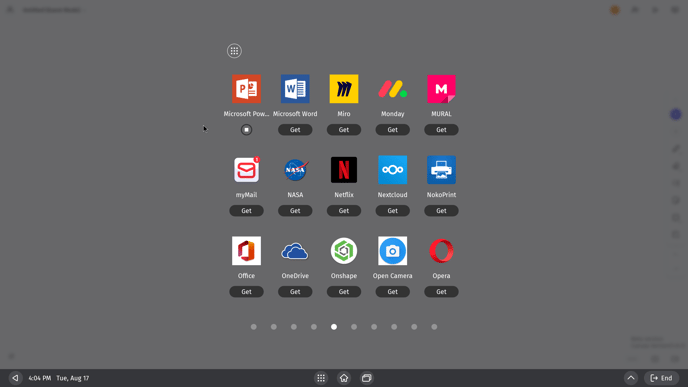
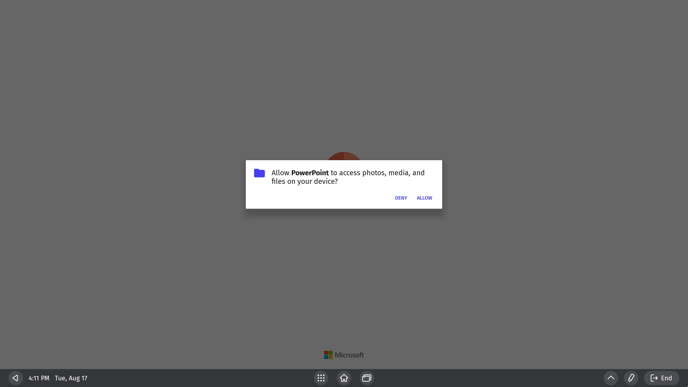
Launch PowerPoint and 'Allow PowerPoint' to access photos, media, and files on your device.
2. **Reboot your Vibe board.**
3. **Import the custom font files into Vibe's internal storage.**
Copy your font files (OTF, TTF files supported) to a USB drive, and plug it into the Vibe board. Open the 'Explorer' app, and navigate to your USB folder. Long press the font file, copy it, and go to the Internal Memory folder. Tap on 'Editor' in the upper-right corner and paste the font file.
4. **Install the custom font in Microsoft PowerPoint.**
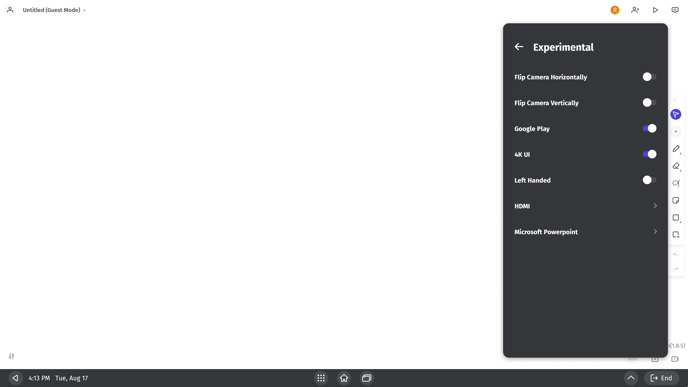
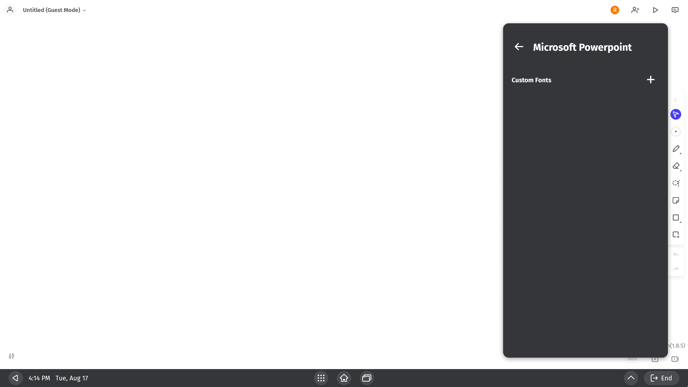
Go to Settings - Experimental - Microsoft PowerPoint.
Click on the "+" icon to launch the file manager.
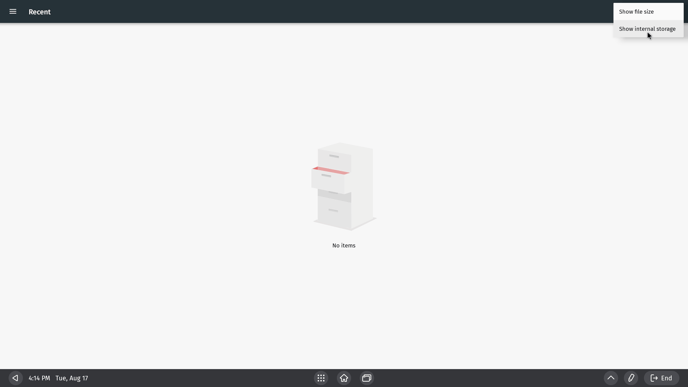
Files in the internal storage may not be shown by default. You can display them by choosing 'Show internal storage' in the top right corner.
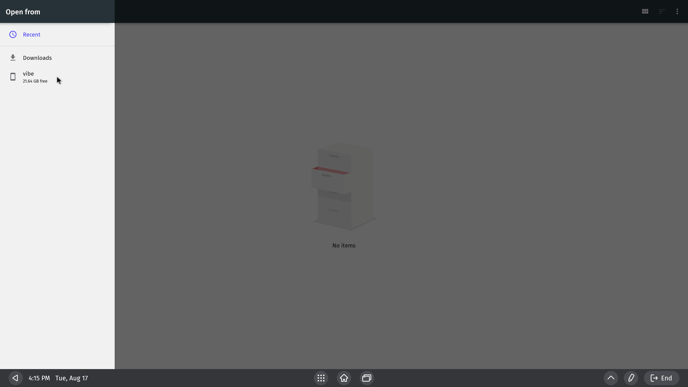
Select 'vibe' from the side panel and your local files will be shown.
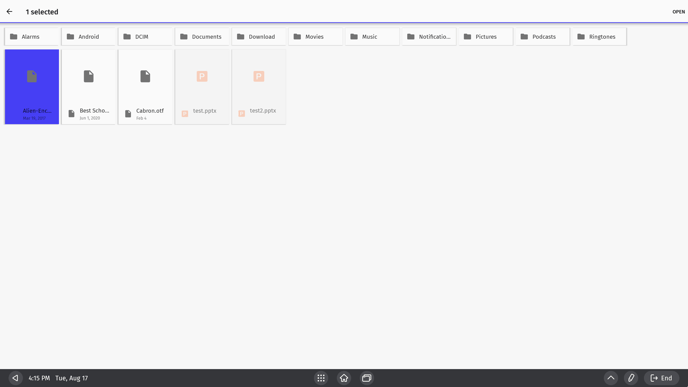
Choose your font file and click 'OPEN' on the top right.
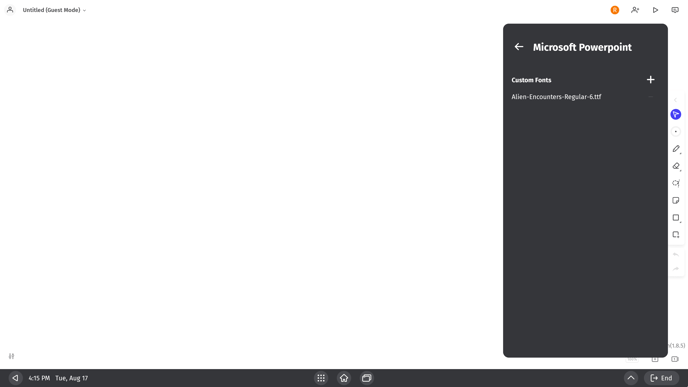
If you now see the font listed in Settings - Experimental - Microsoft PowerPoint - Custom Fonts, that means your font files have been successfully imported.
5. **All set!**
Open any slide in PowerPoint and your custom font should be displayed in the fonts section.
- [Vibe Board S1 55″](https://pages.vibe.us/migration/vibe-board-s1-55?hsLang=en#main-content)
- [Getting Started](https://pages.vibe.us/migration/vibe-board-s1-55?hsLang=en#getting-started)
- [Meeting & Presenting](https://pages.vibe.us/migration/vibe-board-s1-55?hsLang=en#meeting-presenting)
- [Troubleshooting](https://pages.vibe.us/migration/vibe-board-s1-55?hsLang=en#troubleshooting)
- [Release History](https://pages.vibe.us/migration/vibe-board-s1-55?hsLang=en#release-history)
- [Vibe Board Pro 75″](https://pages.vibe.us/migration/vibe-board-pro-75?hsLang=en#main-content)
- [Getting Started](https://pages.vibe.us/migration/vibe-board-pro-75?hsLang=en#getting-started)
- [Third party applications](https://pages.vibe.us/migration/vibe-board-pro-75?hsLang=en#third-party-applications)
- [Additional Features](https://pages.vibe.us/migration/vibe-board-pro-75?hsLang=en#additional-features)
- [Troubleshooting](https://pages.vibe.us/migration/vibe-board-pro-75?hsLang=en#troubleshooting)
- [Buyer's FAQ](https://pages.vibe.us/migration/vibe-board-pro-75?hsLang=en#buyers-faq)
- [Release History](https://pages.vibe.us/migration/vibe-board-pro-75?hsLang=en#release-history)
- [Vibe Board 55"](https://pages.vibe.us/migration/vibe-board-55?hsLang=en#main-content)
- [Getting Started](https://pages.vibe.us/migration/vibe-board-55?hsLang=en#getting-started)
- [Release History](https://pages.vibe.us/migration/vibe-board-55?hsLang=en#release-history)
- [Troubleshooting](https://pages.vibe.us/migration/vibe-board-55?hsLang=en#troubleshooting)
- [Vibe SmartCam C1](https://pages.vibe.us/migration/vibe-smartcam-c1?hsLang=en#main-content)
- [Getting Started](https://pages.vibe.us/migration/vibe-smartcam-c1?hsLang=en#getting-started)
- [Troubleshooting](https://pages.vibe.us/migration/vibe-smartcam-c1?hsLang=en#troubleshooting)
- [Release History](https://pages.vibe.us/migration/vibe-smartcam-c1?hsLang=en#release-history)
- [Vibe Product FAQ](https://pages.vibe.us/migration/vibe-product-faq?hsLang=en#main-content)
- [Pricing & How to Order](https://pages.vibe.us/migration/vibe-product-faq?hsLang=en#pricing-how-to-order)
- [Hardware](https://pages.vibe.us/migration/vibe-product-faq?hsLang=en#hardware)
- [Accessories](https://pages.vibe.us/migration/vibe-product-faq?hsLang=en#accessories)
- [Software](https://pages.vibe.us/migration/vibe-product-faq?hsLang=en#software)
- [Shipping](https://pages.vibe.us/migration/vibe-product-faq?hsLang=en#shipping)
- [Additional FAQs](https://pages.vibe.us/migration/vibe-product-faq?hsLang=en#additional-faqs)
- [What's New?](https://pages.vibe.us/migration/whats-new?hsLang=en#main-content)
- [Vibe Board S1 55"](https://pages.vibe.us/migration/whats-new?hsLang=en#vibe-board-s1-55)
- [Vibe Board Pro 75″](https://pages.vibe.us/migration/whats-new?hsLang=en#vibe-board-pro-75)
- [Vibe Board V1 55″](https://pages.vibe.us/migration/whats-new?hsLang=en#vibe-board-v1-55)
- [Vibe SmartCam C1](https://pages.vibe.us/migration/whats-new?hsLang=en#vibe-smartcam-c1)
- [Canvas 2.0](https://pages.vibe.us/migration/whats-new?hsLang=en#canvas-2-0)
- [Which Vibe Model do I own?](https://pages.vibe.us/migration/which-vibe-model-do-i-own?hsLang=en)
- [Vibe Software](https://pages.vibe.us/migration/vibe-software?hsLang=en#main-content)
- [Canvas 2.0](https://pages.vibe.us/migration/vibe-software?hsLang=en#canvas-2-0)
- [Vibe One](https://pages.vibe.us/migration/vibe-software?hsLang=en#vibe-one)
- [Vibe Cast](https://pages.vibe.us/migration/vibe-software?hsLang=en#vibe-cast)
- [Vibe Admin Console](https://pages.vibe.us/migration/vibe-software?hsLang=en#vibe-admin-console)
- [Default HubSpot Blog](https://vibe-2.hubspotpagebuilder.com/)
[](https://knowledge.vibe.us)
Vibe Knowledge Base
Copyright © 2026, Vibe Inc.