![Vibe_logo_RGB_NoText.png]](https://pages.vibe.us/hs-fs/hubfs/Vibe_logo_RGB_NoText.png?height=40&name=Vibe_logo_RGB_NoText.png)
File Transfer allows you to directly share files from your computer to the Vibe Board without uploading them to any server first.
Here are the step-by-step instructions for Vibe Board 55″:
- To send a file to Vibe, connect your computer and your Vibe Board to the same network. Navigate to cast.vibe.us from your computer web browser and it should find the nearby Vibe Boards. Click the Drop File button on the card for your desired target Board and then select a file.
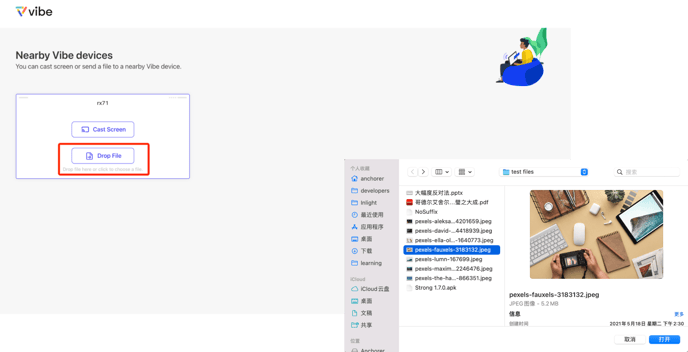
- Or you can drag a file into the card to send it to the target Board.
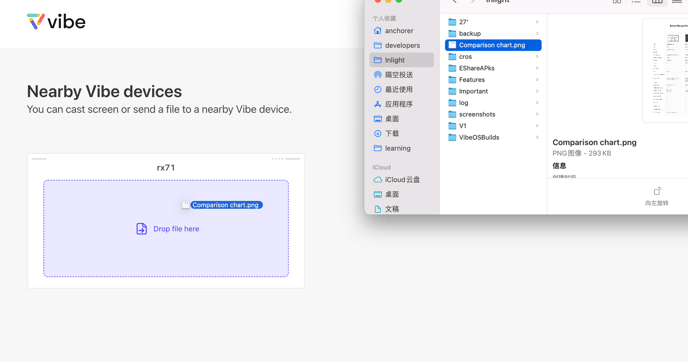
- Then it will start to transfer the file, and you can see the progress on the web page.
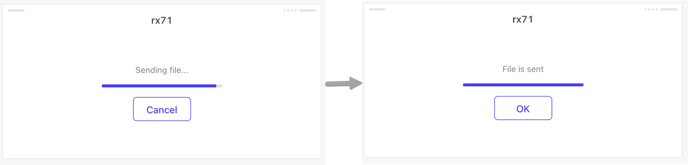
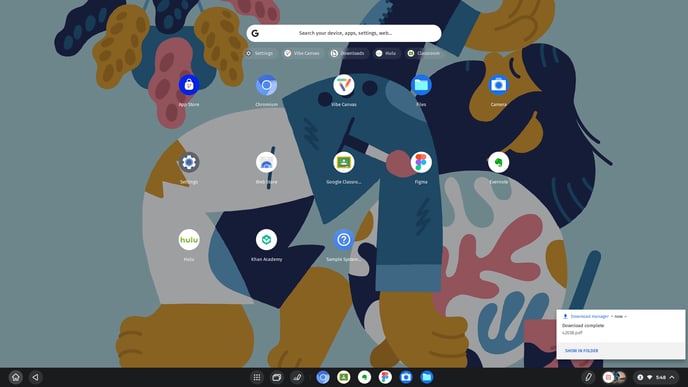
- When it is sent successfully, there will be a pop-up showing the received file. If an image is received, you can see its preview, as shown in the picture below. You can import it directly into Canvas or see it in the folder for downloaded files.
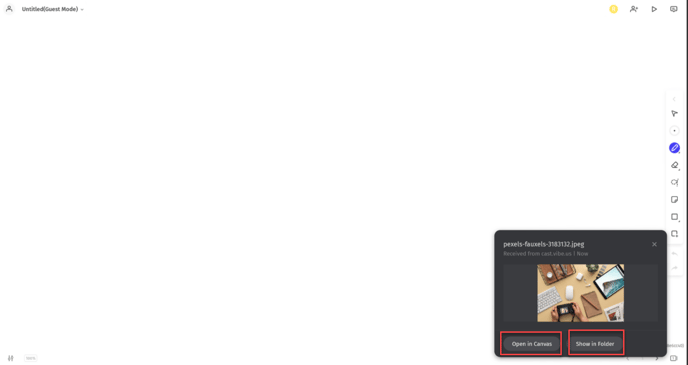
- If a file of other types is received, you will be suggested to open them with apps installed on the Board.
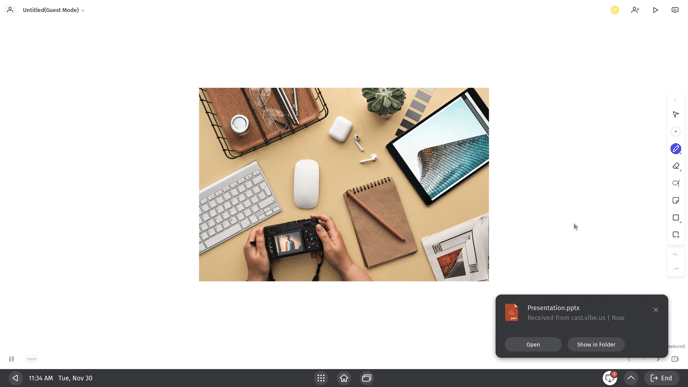
- When there are two or more notification cards displayed, you can tap on Dismiss All to remove them.
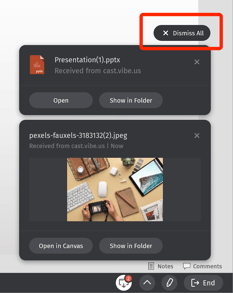
- To see all your received files, tap on
 on the right of the taskbar.
Here are the step-by-step instructions for Vibe Board Pro 75″:
- To send a file to Vibe, you can click the Drop File button on the card for your desired target Board and then select a file.
- Or you can drag a file into the card to send it to the target Board.
- When it is sent successfully, there will be a pop-up showing the received file. If an image is received, you can see its preview, as shown in the picture below.
You can open the folder for downloaded files to see the picture or copy it to the clipboard, which allows you to paste it to third-party apps. To import the picture into Canvas, just tap on Holding Space on the right of the bottom launch bar and drag the thumbnail of the picture into Canvas.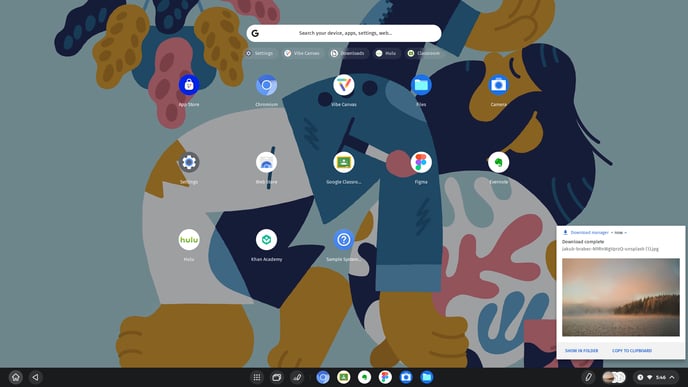
- If a file of other types is received, you will be suggested to open it in the folder.