---
title: How to add and manage comments in Canvas
description: Comments take collaboration to the next level. You can use comments to respond to feedback, tweak your designs, and iterate more efficiently.
---
[Skip to content](https://pages.vibe.us/migration/how-to-add-comments-in-canvas#main-content)
English
Show submenu for translations
[Submit a Support Ticket Here](https://pages.vibe.us/migration/kb-tickets/new?hsLang=en)
![Vibe\_logo\_RGB\_NoText.png\]](https://pages.vibe.us/hs-fs/hubfs/Vibe_logo_RGB_NoText.png?height=40&name=Vibe_logo_RGB_NoText.png)
- [Default HubSpot Blog](https://vibe-2.hubspotpagebuilder.com/)
Open main navigation
Close main navigation
- [Default HubSpot Blog](https://vibe-2.hubspotpagebuilder.com/)
- English
Show submenu for translations
- [Submit a Support Ticket Here](https://pages.vibe.us/migration/kb-tickets/new)
- Go to Vibe.us
Go to Vibe.us
Hello! How can we help you?
- There are no suggestions because the search field is empty.
1. [Vibe Knowledge Base](https://pages.vibe.us/migration?hsLang=en)
2. [Vibe Software](https://pages.vibe.us/migration/vibe-software?hsLang=en)
3. [Canvas 2.0](https://pages.vibe.us/migration/vibe-software?hsLang=en#canvas-2-0)
# How to add and manage comments in Canvas
## Comments take collaboration to the next level. You can use comments to respond to feedback, tweak your designs, and iterate more efficiently.
**Who can use this feature**
\- Anyone with a Vibe account can leave comments.
\- At least view access to the Canvas file is necessary.
You can add comments to your Canvas in commenting mode. Tap on the comment icon  in the upper right corner to enter commenting mode.
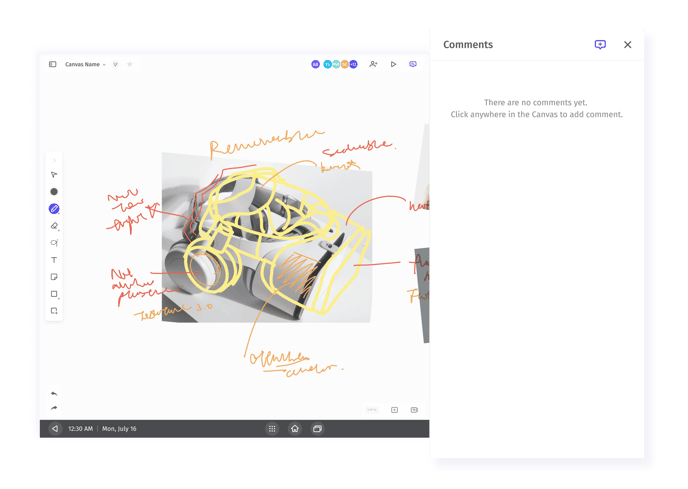
Commenting mode is activated when this icon  is highlight. You can't make any changes to objects in the canvas while in commenting mode.
You can tap it again to inactivate  so that you can select another tool in the toolbar and continue editing the file.
### Add a comment
1. When the commenting mode is activated, you can add a comment on a blank location in the canvas. Tap on the location you would like to add a comment to.
2. Type your message in the field.
3. Click **'done'** to send your message.
If you move your comment to an object, your comment will be attached to that object.
### View comments
You can view comments from a few places:
1. **On the Canvas**
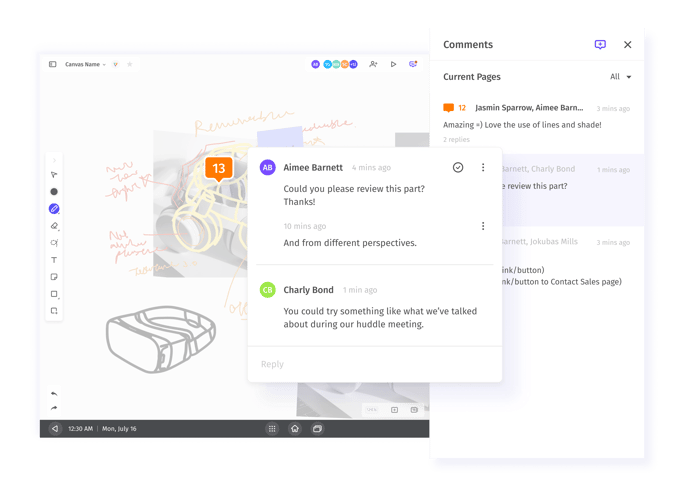
Comments will be shown on the canvas where they have been added. Click on a comment icon in the canvas to view the comment and replies.
2. **From the Comment Side Panel**
All the comments in the file will be listed in the Comment Side Panel on the right side of the board. Select any comment on the side panel to open it in the Canvas.
### Sort and filter comments
All comments on the board are listed in the Comment Side Panel on the right. Comments are ranked by time sent - any new comments will be shown at the top, followed by older comments.
The filter at the top of the panel allows you to select which comments you'd like to view.
1. Click the dropdown next to **All**.
2. You then have two options:
1. Choose **All** to view all Comments on the canvas.
2. Choose **Unread** to view the comments that you haven't read.
3. You can also decide if you'd like to **Show resolved** comments. Click on the setting to turn it on/off.
### Reply to comments
Anyone can view, add and reply to Comments, including Viewers.
1. Open the comment. You can either click on the comment on the canvas or select the comment from the Comment Side Panel.
2. The Comment box will appear with a Reply field. Tap the Reply field to type in your message.
3. Click **Done** to add your comment to the thread.
4. You can add replies to the thread as needed.
### Resolve comments
Once the feedback is no longer relevant, you can 'Resolve' the Comment. This will hide the Comment from both the Comment Side Panel and the Canvas.
1. Click on the Comment in the Canvas or Comment Side Panel to open it.
2. Click the checkbox in the top-right corner to mark it as **Resolved**:
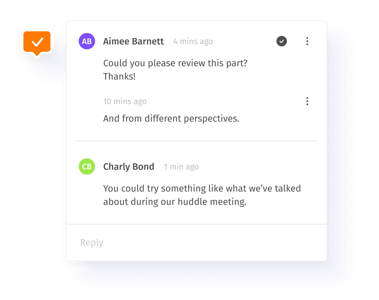
3. This will hide the Comment from both the Comment Side Panel and the Canvas.
**Note:** If this has been done accidentally, you can click the checkbox again to '**Unresolve'**.
You will need to turn on the *Show Resolved* setting to view those comments again. Learn more in the [Sort and filter comments](https://pages.vibe.us/migration/how-to-add-comments-in-canvas#filter) section.
### Edit or delete comments
You can also edit or delete any comment you post. If you delete a comment with replies, this will delete the entire thread.
#### Edit or delete a single comment
1. Select any comment.
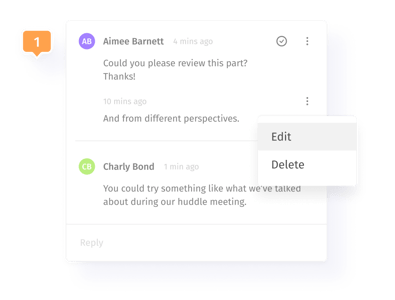
2. Click on the three-dot menu on the right side of the Comment box.
3. Choose **Edit** or **Delete** from the options:
****
4. Any edits will be reflected immediately, or the comment will be deleted permanently.
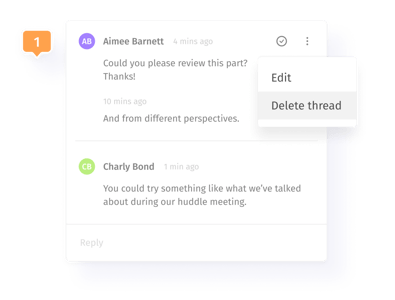
#### Delete an entire thread
You can also choose to delete an entire thread. This will delete both the initial comment and any replies.
1. Select the initial comment in the thread.
2. Click on the three-dot menu on the right side of the Comment box.
3. Select **Delete Thread** from the options:
****
4. The entire thread will be immediately deleted.
- [Vibe Board S1 55″](https://pages.vibe.us/migration/vibe-board-s1-55?hsLang=en#main-content)
- [Getting Started](https://pages.vibe.us/migration/vibe-board-s1-55?hsLang=en#getting-started)
- [Meeting & Presenting](https://pages.vibe.us/migration/vibe-board-s1-55?hsLang=en#meeting-presenting)
- [Troubleshooting](https://pages.vibe.us/migration/vibe-board-s1-55?hsLang=en#troubleshooting)
- [Release History](https://pages.vibe.us/migration/vibe-board-s1-55?hsLang=en#release-history)
- [Vibe Board Pro 75″](https://pages.vibe.us/migration/vibe-board-pro-75?hsLang=en#main-content)
- [Getting Started](https://pages.vibe.us/migration/vibe-board-pro-75?hsLang=en#getting-started)
- [Third party applications](https://pages.vibe.us/migration/vibe-board-pro-75?hsLang=en#third-party-applications)
- [Additional Features](https://pages.vibe.us/migration/vibe-board-pro-75?hsLang=en#additional-features)
- [Troubleshooting](https://pages.vibe.us/migration/vibe-board-pro-75?hsLang=en#troubleshooting)
- [Buyer's FAQ](https://pages.vibe.us/migration/vibe-board-pro-75?hsLang=en#buyers-faq)
- [Release History](https://pages.vibe.us/migration/vibe-board-pro-75?hsLang=en#release-history)
- [Vibe Board 55"](https://pages.vibe.us/migration/vibe-board-55?hsLang=en#main-content)
- [Getting Started](https://pages.vibe.us/migration/vibe-board-55?hsLang=en#getting-started)
- [Release History](https://pages.vibe.us/migration/vibe-board-55?hsLang=en#release-history)
- [Troubleshooting](https://pages.vibe.us/migration/vibe-board-55?hsLang=en#troubleshooting)
- [Vibe SmartCam C1](https://pages.vibe.us/migration/vibe-smartcam-c1?hsLang=en#main-content)
- [Getting Started](https://pages.vibe.us/migration/vibe-smartcam-c1?hsLang=en#getting-started)
- [Troubleshooting](https://pages.vibe.us/migration/vibe-smartcam-c1?hsLang=en#troubleshooting)
- [Release History](https://pages.vibe.us/migration/vibe-smartcam-c1?hsLang=en#release-history)
- [Vibe Product FAQ](https://pages.vibe.us/migration/vibe-product-faq?hsLang=en#main-content)
- [Pricing & How to Order](https://pages.vibe.us/migration/vibe-product-faq?hsLang=en#pricing-how-to-order)
- [Hardware](https://pages.vibe.us/migration/vibe-product-faq?hsLang=en#hardware)
- [Accessories](https://pages.vibe.us/migration/vibe-product-faq?hsLang=en#accessories)
- [Software](https://pages.vibe.us/migration/vibe-product-faq?hsLang=en#software)
- [Shipping](https://pages.vibe.us/migration/vibe-product-faq?hsLang=en#shipping)
- [Additional FAQs](https://pages.vibe.us/migration/vibe-product-faq?hsLang=en#additional-faqs)
- [What's New?](https://pages.vibe.us/migration/whats-new?hsLang=en#main-content)
- [Vibe Board S1 55"](https://pages.vibe.us/migration/whats-new?hsLang=en#vibe-board-s1-55)
- [Vibe Board Pro 75″](https://pages.vibe.us/migration/whats-new?hsLang=en#vibe-board-pro-75)
- [Vibe Board V1 55″](https://pages.vibe.us/migration/whats-new?hsLang=en#vibe-board-v1-55)
- [Vibe SmartCam C1](https://pages.vibe.us/migration/whats-new?hsLang=en#vibe-smartcam-c1)
- [Canvas 2.0](https://pages.vibe.us/migration/whats-new?hsLang=en#canvas-2-0)
- [Which Vibe Model do I own?](https://pages.vibe.us/migration/which-vibe-model-do-i-own?hsLang=en)
- [Vibe Software](https://pages.vibe.us/migration/vibe-software?hsLang=en#main-content)
- [Canvas 2.0](https://pages.vibe.us/migration/vibe-software?hsLang=en#canvas-2-0)
- [Vibe One](https://pages.vibe.us/migration/vibe-software?hsLang=en#vibe-one)
- [Vibe Cast](https://pages.vibe.us/migration/vibe-software?hsLang=en#vibe-cast)
- [Vibe Admin Console](https://pages.vibe.us/migration/vibe-software?hsLang=en#vibe-admin-console)
- [Default HubSpot Blog](https://vibe-2.hubspotpagebuilder.com/)
[](https://knowledge.vibe.us)
Vibe Knowledge Base
Copyright © 2026, Vibe Inc.