---
title: "How to split screen on the Vibe Board Pro 75\""
description: One of the pros of having a large monitor is being able to multitask with two windows side by side on the same screen.
---
[Skip to content](https://pages.vibe.us/migration/how-to-split-your-screen-on-vibe-smartboard-75#main-content)
English
Show submenu for translations
[Submit a Support Ticket Here](https://pages.vibe.us/migration/kb-tickets/new?hsLang=en)
![Vibe\_logo\_RGB\_NoText.png\]](https://pages.vibe.us/hs-fs/hubfs/Vibe_logo_RGB_NoText.png?height=40&name=Vibe_logo_RGB_NoText.png)
- [Default HubSpot Blog](https://vibe-2.hubspotpagebuilder.com/)
Open main navigation
Close main navigation
- [Default HubSpot Blog](https://vibe-2.hubspotpagebuilder.com/)
- English
Show submenu for translations
- [Submit a Support Ticket Here](https://pages.vibe.us/migration/kb-tickets/new)
- Go to Vibe.us
Go to Vibe.us
Hello! How can we help you?
- There are no suggestions because the search field is empty.
1. [Vibe Knowledge Base](https://pages.vibe.us/migration?hsLang=en)
2. [Vibe Board Pro 75″](https://pages.vibe.us/migration/vibe-board-pro-75?hsLang=en)
3. [Getting Started](https://pages.vibe.us/migration/vibe-board-pro-75?hsLang=en#getting-started)
# How to split screen on the Vibe Board Pro 75"
## One of the pros of having a large monitor is being able to multitask with two windows side by side on the same screen.
On the Vibe Board Pro 75", the split-screen mode makes it easier to multitask. To split screen, simply drag a window all the way to one side of the screen until it snaps into place. Then select another window to fill the other half of your screen. Here's the step-by-step instruction.
1\. Tap on the **Overview** icon  on the bottom launch bar to get into the recent task list. You can see the thumbnails of all running apps here.
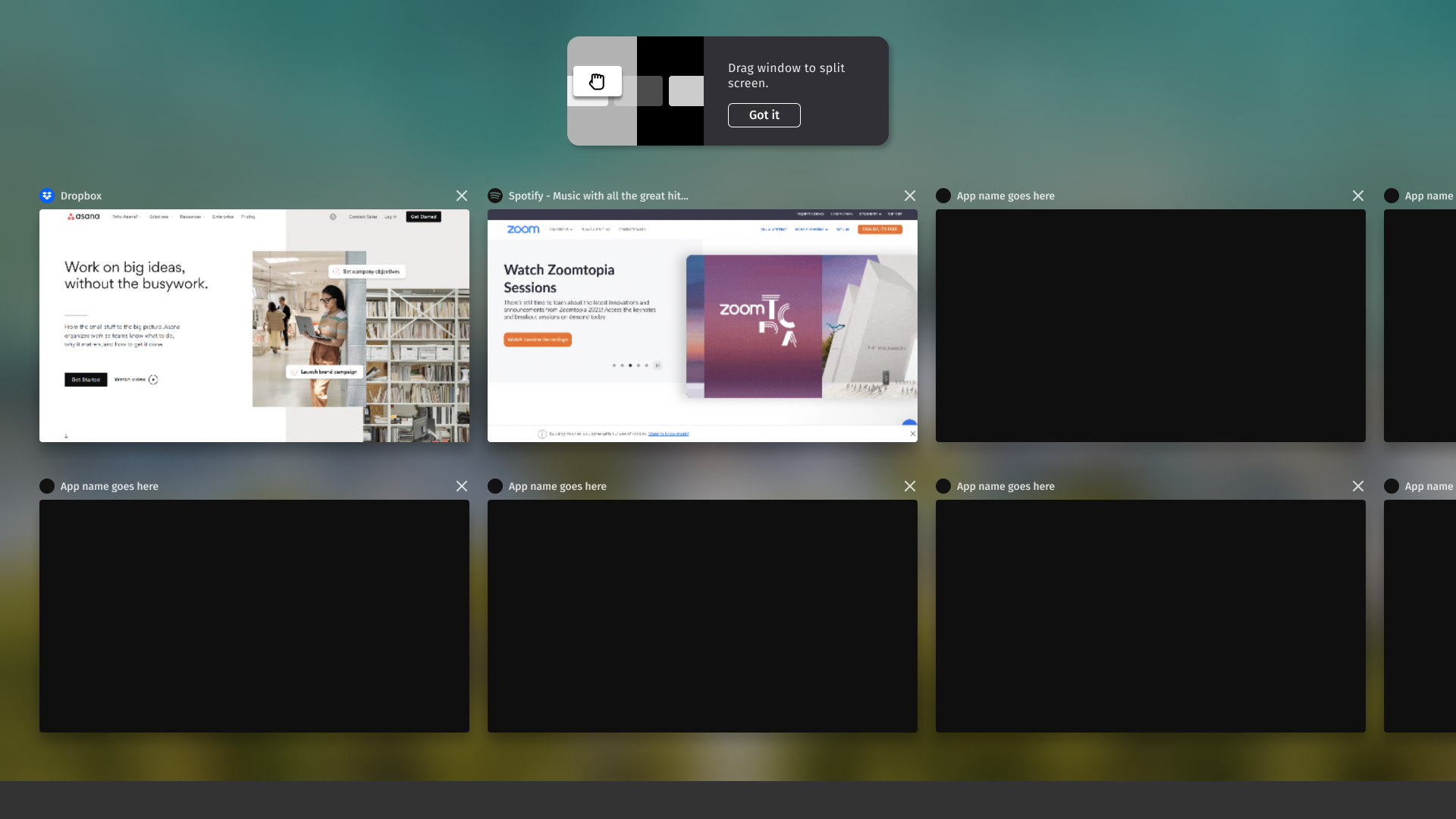
2\. Tap and hold a window to trigger the split-screen mode.
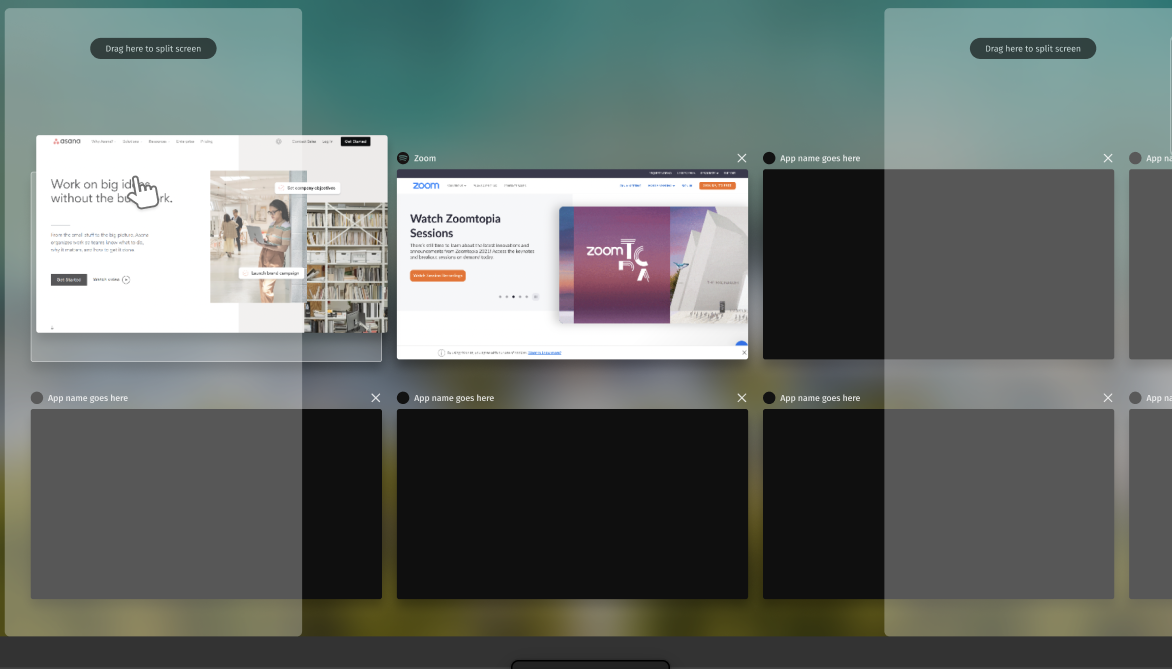
3\. Drag a window to the left or right edge of the screen where you'll see a space that can hold the window appears. Drop the window and it will snap into the right position.
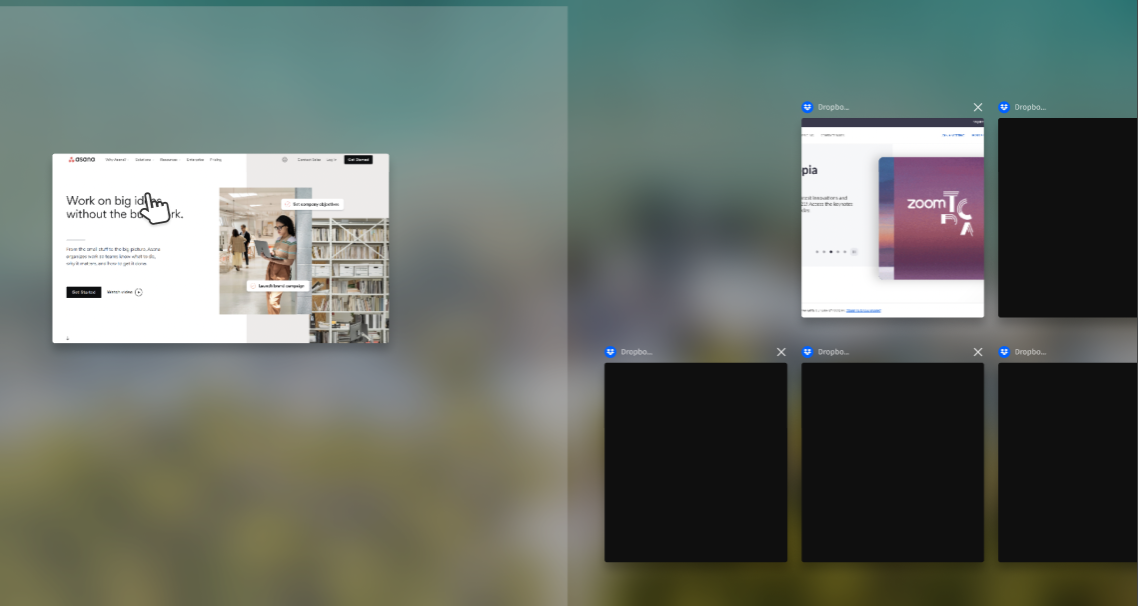
4\. You should now see the thumbnails of other windows on the opposite side of the screen.
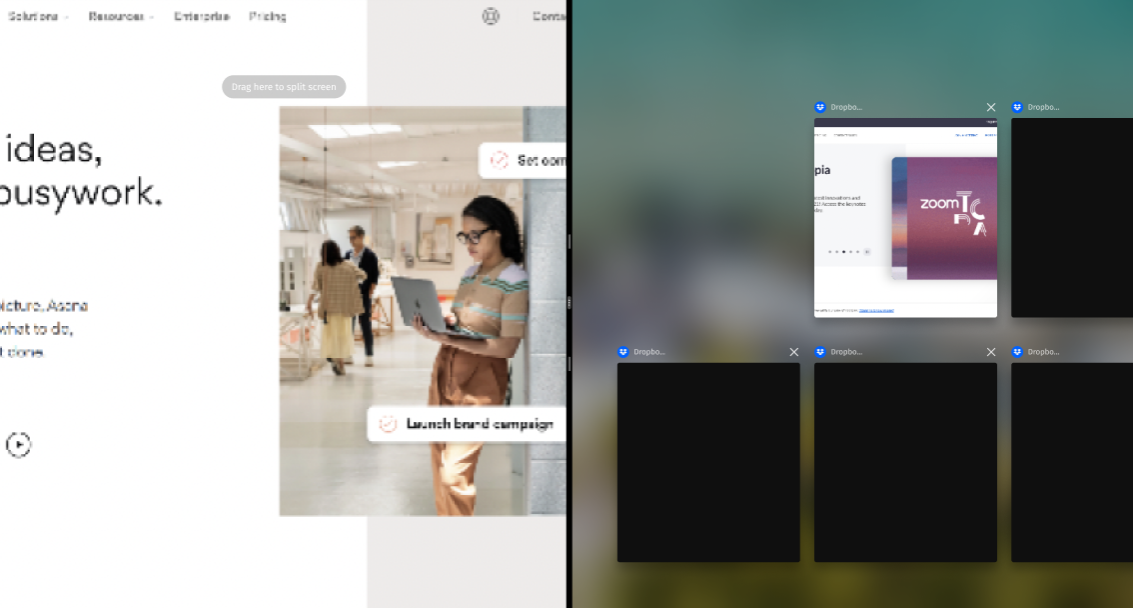
5\. Tap on another window and it will snap to the other side of the screen. Now, you have two windows side by side.
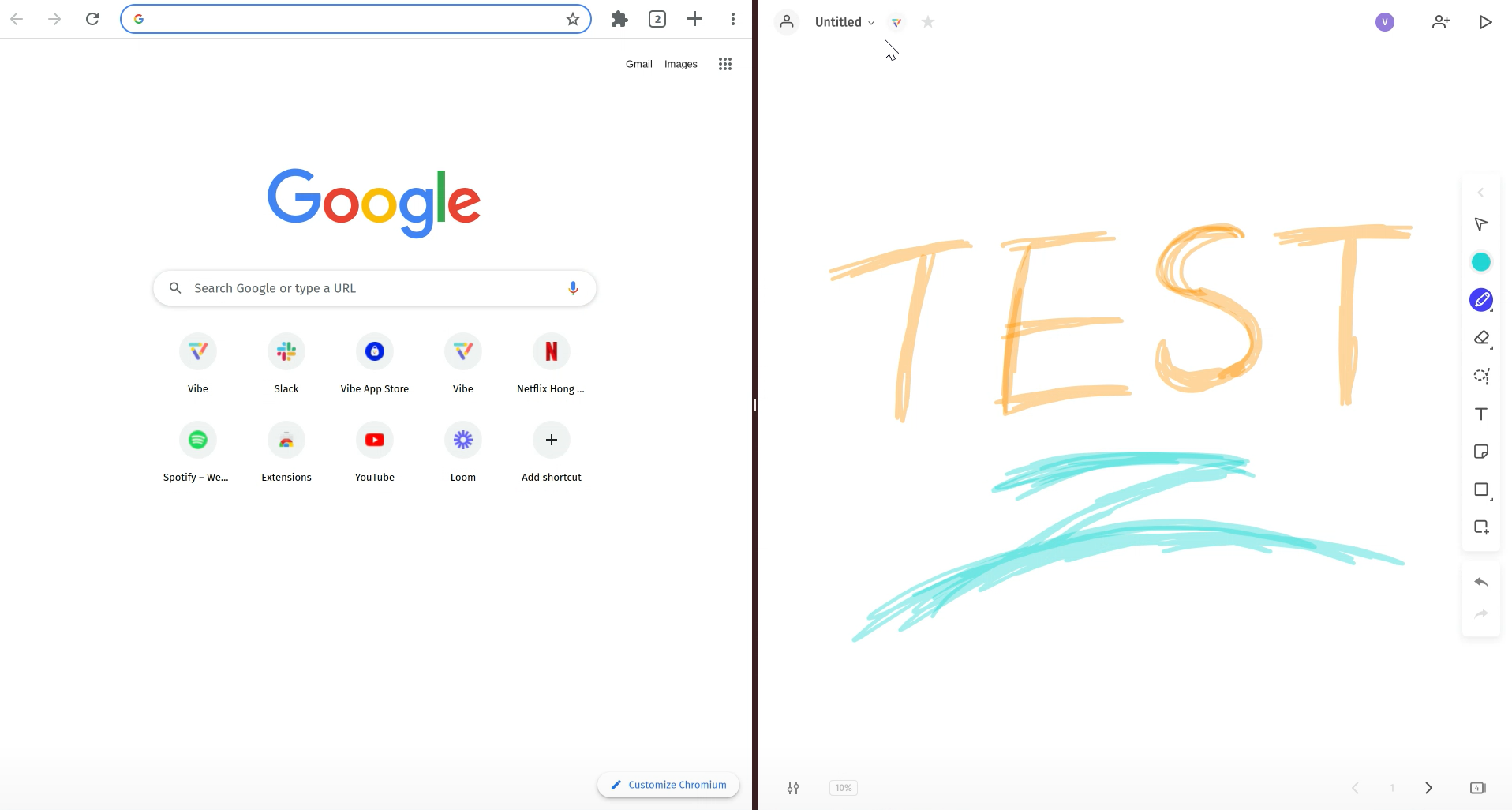
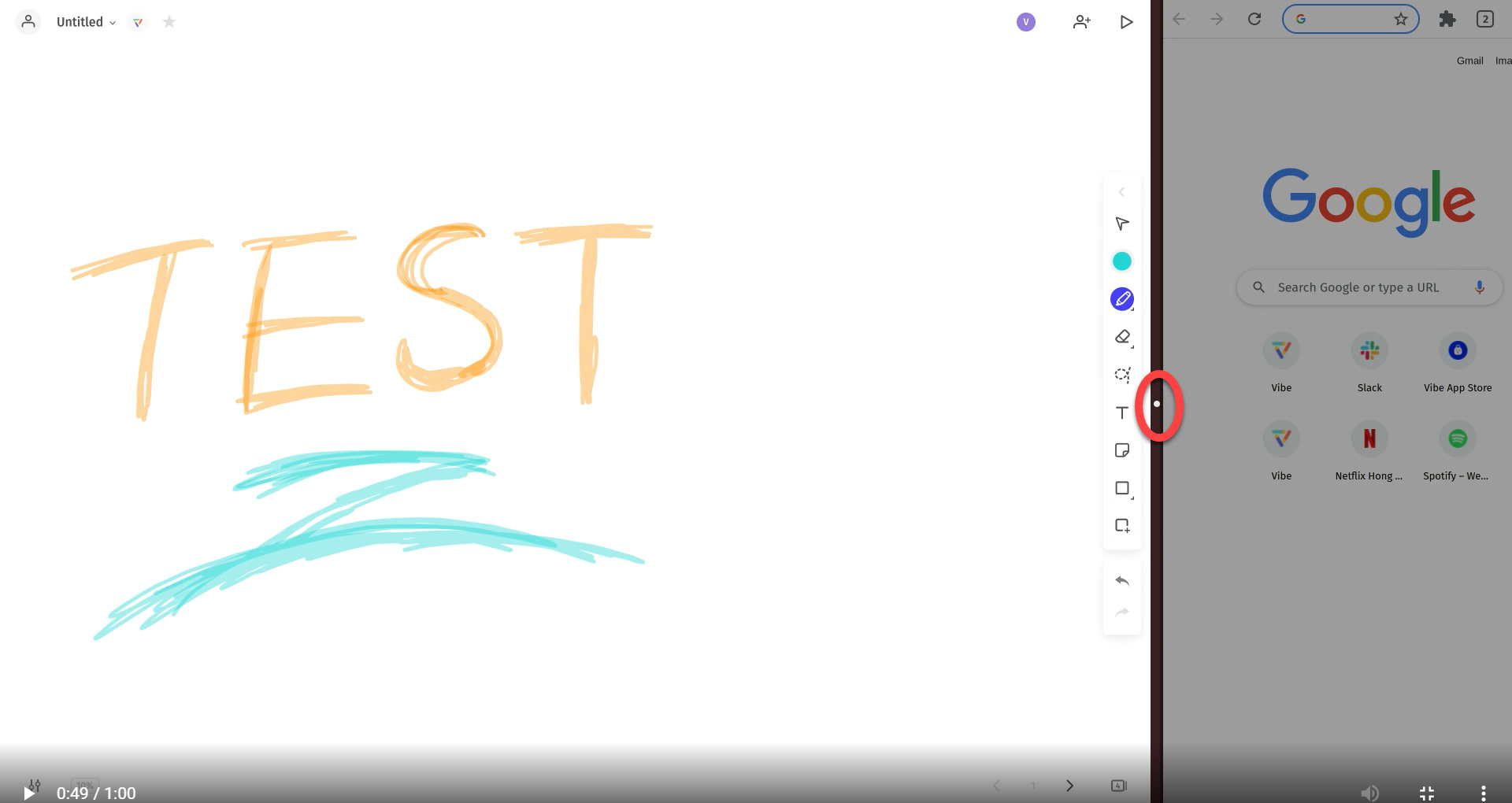
6\. You can change the width of each window by dragging the divider to the left or right.
- [Vibe Board S1 55″](https://pages.vibe.us/migration/vibe-board-s1-55?hsLang=en#main-content)
- [Getting Started](https://pages.vibe.us/migration/vibe-board-s1-55?hsLang=en#getting-started)
- [Meeting & Presenting](https://pages.vibe.us/migration/vibe-board-s1-55?hsLang=en#meeting-presenting)
- [Troubleshooting](https://pages.vibe.us/migration/vibe-board-s1-55?hsLang=en#troubleshooting)
- [Release History](https://pages.vibe.us/migration/vibe-board-s1-55?hsLang=en#release-history)
- [Vibe Board Pro 75″](https://pages.vibe.us/migration/vibe-board-pro-75?hsLang=en#main-content)
- [Getting Started](https://pages.vibe.us/migration/vibe-board-pro-75?hsLang=en#getting-started)
- [Third party applications](https://pages.vibe.us/migration/vibe-board-pro-75?hsLang=en#third-party-applications)
- [Additional Features](https://pages.vibe.us/migration/vibe-board-pro-75?hsLang=en#additional-features)
- [Troubleshooting](https://pages.vibe.us/migration/vibe-board-pro-75?hsLang=en#troubleshooting)
- [Buyer's FAQ](https://pages.vibe.us/migration/vibe-board-pro-75?hsLang=en#buyers-faq)
- [Release History](https://pages.vibe.us/migration/vibe-board-pro-75?hsLang=en#release-history)
- [Vibe Board 55"](https://pages.vibe.us/migration/vibe-board-55?hsLang=en#main-content)
- [Getting Started](https://pages.vibe.us/migration/vibe-board-55?hsLang=en#getting-started)
- [Release History](https://pages.vibe.us/migration/vibe-board-55?hsLang=en#release-history)
- [Troubleshooting](https://pages.vibe.us/migration/vibe-board-55?hsLang=en#troubleshooting)
- [Vibe SmartCam C1](https://pages.vibe.us/migration/vibe-smartcam-c1?hsLang=en#main-content)
- [Getting Started](https://pages.vibe.us/migration/vibe-smartcam-c1?hsLang=en#getting-started)
- [Troubleshooting](https://pages.vibe.us/migration/vibe-smartcam-c1?hsLang=en#troubleshooting)
- [Release History](https://pages.vibe.us/migration/vibe-smartcam-c1?hsLang=en#release-history)
- [Vibe Product FAQ](https://pages.vibe.us/migration/vibe-product-faq?hsLang=en#main-content)
- [Pricing & How to Order](https://pages.vibe.us/migration/vibe-product-faq?hsLang=en#pricing-how-to-order)
- [Hardware](https://pages.vibe.us/migration/vibe-product-faq?hsLang=en#hardware)
- [Accessories](https://pages.vibe.us/migration/vibe-product-faq?hsLang=en#accessories)
- [Software](https://pages.vibe.us/migration/vibe-product-faq?hsLang=en#software)
- [Shipping](https://pages.vibe.us/migration/vibe-product-faq?hsLang=en#shipping)
- [Additional FAQs](https://pages.vibe.us/migration/vibe-product-faq?hsLang=en#additional-faqs)
- [What's New?](https://pages.vibe.us/migration/whats-new?hsLang=en#main-content)
- [Vibe Board S1 55"](https://pages.vibe.us/migration/whats-new?hsLang=en#vibe-board-s1-55)
- [Vibe Board Pro 75″](https://pages.vibe.us/migration/whats-new?hsLang=en#vibe-board-pro-75)
- [Vibe Board V1 55″](https://pages.vibe.us/migration/whats-new?hsLang=en#vibe-board-v1-55)
- [Vibe SmartCam C1](https://pages.vibe.us/migration/whats-new?hsLang=en#vibe-smartcam-c1)
- [Canvas 2.0](https://pages.vibe.us/migration/whats-new?hsLang=en#canvas-2-0)
- [Which Vibe Model do I own?](https://pages.vibe.us/migration/which-vibe-model-do-i-own?hsLang=en)
- [Vibe Software](https://pages.vibe.us/migration/vibe-software?hsLang=en#main-content)
- [Canvas 2.0](https://pages.vibe.us/migration/vibe-software?hsLang=en#canvas-2-0)
- [Vibe One](https://pages.vibe.us/migration/vibe-software?hsLang=en#vibe-one)
- [Vibe Cast](https://pages.vibe.us/migration/vibe-software?hsLang=en#vibe-cast)
- [Vibe Admin Console](https://pages.vibe.us/migration/vibe-software?hsLang=en#vibe-admin-console)
- [Default HubSpot Blog](https://vibe-2.hubspotpagebuilder.com/)
[](https://knowledge.vibe.us)
Vibe Knowledge Base
Copyright © 2026, Vibe Inc.