---
title: "How to use HDMI with touchback and annotation on the Vibe Board S1 55\""
description: Mirror, cast, and annotate on the Vibe Board S1 55" using a computer.
---
[Skip to content](https://pages.vibe.us/migration/how-to-use-hdmi-in-s1-55#main-content)
English
Show submenu for translations
[Submit a Support Ticket Here](https://pages.vibe.us/migration/kb-tickets/new?hsLang=en)
![Vibe\_logo\_RGB\_NoText.png\]](https://pages.vibe.us/hs-fs/hubfs/Vibe_logo_RGB_NoText.png?height=40&name=Vibe_logo_RGB_NoText.png)
- [Default HubSpot Blog](https://vibe-2.hubspotpagebuilder.com/)
Open main navigation
Close main navigation
- [Default HubSpot Blog](https://vibe-2.hubspotpagebuilder.com/)
- English
Show submenu for translations
- [Submit a Support Ticket Here](https://pages.vibe.us/migration/kb-tickets/new)
- Go to Vibe.us
Go to Vibe.us
Hello! How can we help you?
- There are no suggestions because the search field is empty.
1. [Vibe Knowledge Base](https://pages.vibe.us/migration?hsLang=en)
2. [Vibe Board S1 55″](https://pages.vibe.us/migration/vibe-board-s1-55?hsLang=en)
3. [Getting Started](https://pages.vibe.us/migration/vibe-board-s1-55?hsLang=en#getting-started)
# How to use HDMI with touchback and annotation on the Vibe Board S1 55"
## Mirror, cast, and annotate on the Vibe Board S1 55" using a computer.
### **Determine the type of USB port you have on your computer to see which specific cables are required.**
**If your laptop has a USB-C port as shown in this Apple PC and Windows PC, you will require a [USB-C Video Monitor Cable](https://a.co/d/hFQNol4).**
 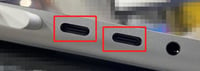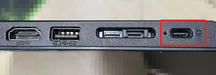
1. Connect the **[USB-C Video Monitor Cable](https://a.co/d/hFQNol4)**from your computer USB-C port to the #4-Touch USB-C port on Vibe Board.
2. Touch the HDMI icon on the launch bar to open the Input Sources menu.

3. Press the **"4.TOUCH"** Switch button
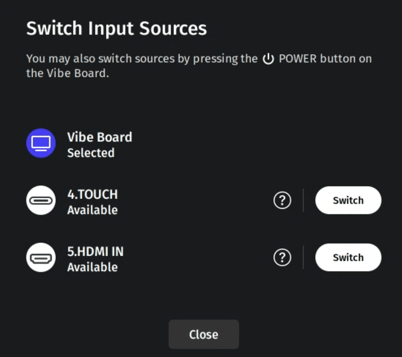
4. Then you will have screen-casting/annotation/touchback.
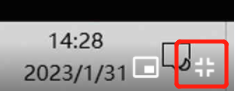
> ***Please be noted, you need to go into "Full Screen Mode" for "touchback" to work.* *After the screen-casting has been connected, if you touch Vibe screen you will see a button show at the right corner. Then you could click it to manage "Full Screen Mode".***
>
> 
**If your laptop does not have a USB-C port, but only has a USB-A port, as shown in this PC, you will require an HDMI cable and a USB-A/USB-C cable to achieve both screen-casting/touchback. Annotation is not available for this connection type**
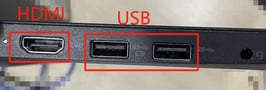
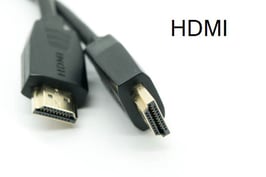 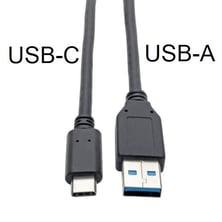
1. Connect the HDMI from your computer to the HDMI-IN port on the Vibe Board and plug the USB-A/USB-C cable from the USB-A port of your computer to the #4-Touch USB-C port on Vibe Board.
2. Touch the HDMI icon on the launch bar to open the Input Sources menu.

3. Press the **"5.HDMI IN"** Switch button

4. You will have both screen-casting/touchback. Annotation is not available for this connection type.
**If you only want to have a standard HDMI connection with screen-casting, you will only require an HDMI cable.**
****
1. Connect the HDMI from your computer to the HDMI-IN port on the Vibe Board.
2. Touch the HDMI icon on the launch bar to open the Input Sources menu.

3. Press the **"5.HDMI IN"** Switch button

4. You will have standard screen-casting. Touchback and annotation will not be available for this connection type.
- [Vibe Board S1 55″](https://pages.vibe.us/migration/vibe-board-s1-55?hsLang=en#main-content)
- [Getting Started](https://pages.vibe.us/migration/vibe-board-s1-55?hsLang=en#getting-started)
- [Meeting & Presenting](https://pages.vibe.us/migration/vibe-board-s1-55?hsLang=en#meeting-presenting)
- [Troubleshooting](https://pages.vibe.us/migration/vibe-board-s1-55?hsLang=en#troubleshooting)
- [Release History](https://pages.vibe.us/migration/vibe-board-s1-55?hsLang=en#release-history)
- [Vibe Board Pro 75″](https://pages.vibe.us/migration/vibe-board-pro-75?hsLang=en#main-content)
- [Getting Started](https://pages.vibe.us/migration/vibe-board-pro-75?hsLang=en#getting-started)
- [Third party applications](https://pages.vibe.us/migration/vibe-board-pro-75?hsLang=en#third-party-applications)
- [Additional Features](https://pages.vibe.us/migration/vibe-board-pro-75?hsLang=en#additional-features)
- [Troubleshooting](https://pages.vibe.us/migration/vibe-board-pro-75?hsLang=en#troubleshooting)
- [Buyer's FAQ](https://pages.vibe.us/migration/vibe-board-pro-75?hsLang=en#buyers-faq)
- [Release History](https://pages.vibe.us/migration/vibe-board-pro-75?hsLang=en#release-history)
- [Vibe Board 55"](https://pages.vibe.us/migration/vibe-board-55?hsLang=en#main-content)
- [Getting Started](https://pages.vibe.us/migration/vibe-board-55?hsLang=en#getting-started)
- [Release History](https://pages.vibe.us/migration/vibe-board-55?hsLang=en#release-history)
- [Troubleshooting](https://pages.vibe.us/migration/vibe-board-55?hsLang=en#troubleshooting)
- [Vibe SmartCam C1](https://pages.vibe.us/migration/vibe-smartcam-c1?hsLang=en#main-content)
- [Getting Started](https://pages.vibe.us/migration/vibe-smartcam-c1?hsLang=en#getting-started)
- [Troubleshooting](https://pages.vibe.us/migration/vibe-smartcam-c1?hsLang=en#troubleshooting)
- [Release History](https://pages.vibe.us/migration/vibe-smartcam-c1?hsLang=en#release-history)
- [Vibe Product FAQ](https://pages.vibe.us/migration/vibe-product-faq?hsLang=en#main-content)
- [Pricing & How to Order](https://pages.vibe.us/migration/vibe-product-faq?hsLang=en#pricing-how-to-order)
- [Hardware](https://pages.vibe.us/migration/vibe-product-faq?hsLang=en#hardware)
- [Accessories](https://pages.vibe.us/migration/vibe-product-faq?hsLang=en#accessories)
- [Software](https://pages.vibe.us/migration/vibe-product-faq?hsLang=en#software)
- [Shipping](https://pages.vibe.us/migration/vibe-product-faq?hsLang=en#shipping)
- [Additional FAQs](https://pages.vibe.us/migration/vibe-product-faq?hsLang=en#additional-faqs)
- [What's New?](https://pages.vibe.us/migration/whats-new?hsLang=en#main-content)
- [Vibe Board S1 55"](https://pages.vibe.us/migration/whats-new?hsLang=en#vibe-board-s1-55)
- [Vibe Board Pro 75″](https://pages.vibe.us/migration/whats-new?hsLang=en#vibe-board-pro-75)
- [Vibe Board V1 55″](https://pages.vibe.us/migration/whats-new?hsLang=en#vibe-board-v1-55)
- [Vibe SmartCam C1](https://pages.vibe.us/migration/whats-new?hsLang=en#vibe-smartcam-c1)
- [Canvas 2.0](https://pages.vibe.us/migration/whats-new?hsLang=en#canvas-2-0)
- [Which Vibe Model do I own?](https://pages.vibe.us/migration/which-vibe-model-do-i-own?hsLang=en)
- [Vibe Software](https://pages.vibe.us/migration/vibe-software?hsLang=en#main-content)
- [Canvas 2.0](https://pages.vibe.us/migration/vibe-software?hsLang=en#canvas-2-0)
- [Vibe One](https://pages.vibe.us/migration/vibe-software?hsLang=en#vibe-one)
- [Vibe Cast](https://pages.vibe.us/migration/vibe-software?hsLang=en#vibe-cast)
- [Vibe Admin Console](https://pages.vibe.us/migration/vibe-software?hsLang=en#vibe-admin-console)
- [Default HubSpot Blog](https://vibe-2.hubspotpagebuilder.com/)
[](https://knowledge.vibe.us)
Vibe Knowledge Base
Copyright © 2026, Vibe Inc.