---
title: "How to Setup One-Click Video Conference on the S1 55\" Vibe Board"
description: Integrate Google Calendar One-Click Video Conference with Zoom/Google Meet
---
[Skip to content](https://pages.vibe.us/migration/https/knowledge.vibe.us/how-to-setup-one-click-video-conference-on-the-s1-55-vibe-board#main-content)
English
Show submenu for translations
[Submit a Support Ticket Here](https://pages.vibe.us/migration/kb-tickets/new?hsLang=en)
![Vibe\_logo\_RGB\_NoText.png\]](https://pages.vibe.us/hs-fs/hubfs/Vibe_logo_RGB_NoText.png?height=40&name=Vibe_logo_RGB_NoText.png)
- [Default HubSpot Blog](https://vibe-2.hubspotpagebuilder.com/)
Open main navigation
Close main navigation
- [Default HubSpot Blog](https://vibe-2.hubspotpagebuilder.com/)
- English
Show submenu for translations
- [Submit a Support Ticket Here](https://pages.vibe.us/migration/kb-tickets/new)
- Go to Vibe.us
Go to Vibe.us
Hello! How can we help you?
- There are no suggestions because the search field is empty.
1. [Vibe Knowledge Base](https://pages.vibe.us/migration?hsLang=en)
2. [Vibe Board S1 55″](https://pages.vibe.us/migration/vibe-board-s1-55?hsLang=en)
3. [Getting Started](https://pages.vibe.us/migration/vibe-board-s1-55?hsLang=en#getting-started)
# How to Setup One-Click Video Conference on the S1 55" Vibe Board
## Integrate Google Calendar One-Click Video Conference with Zoom/Google Meet
**Prerequisites**
- Has S1 55" Vibe smart whiteboard hardware (if you are using a Vibe smart whiteboard 55″, please refer to [this article](https://knowledge.vibe.us/1-click-vc-google).)
- If you are using a Vibe smart Whiteboard 75", please refer to [this article](https://knowledge.vibe.us/how-to-setup-one-click-video-conference-on-the-75-vibe-board)
#### Setup One-Click Video Conference on the Vibe S1 55" smart whiteboard
Step 1: Click the settings icon
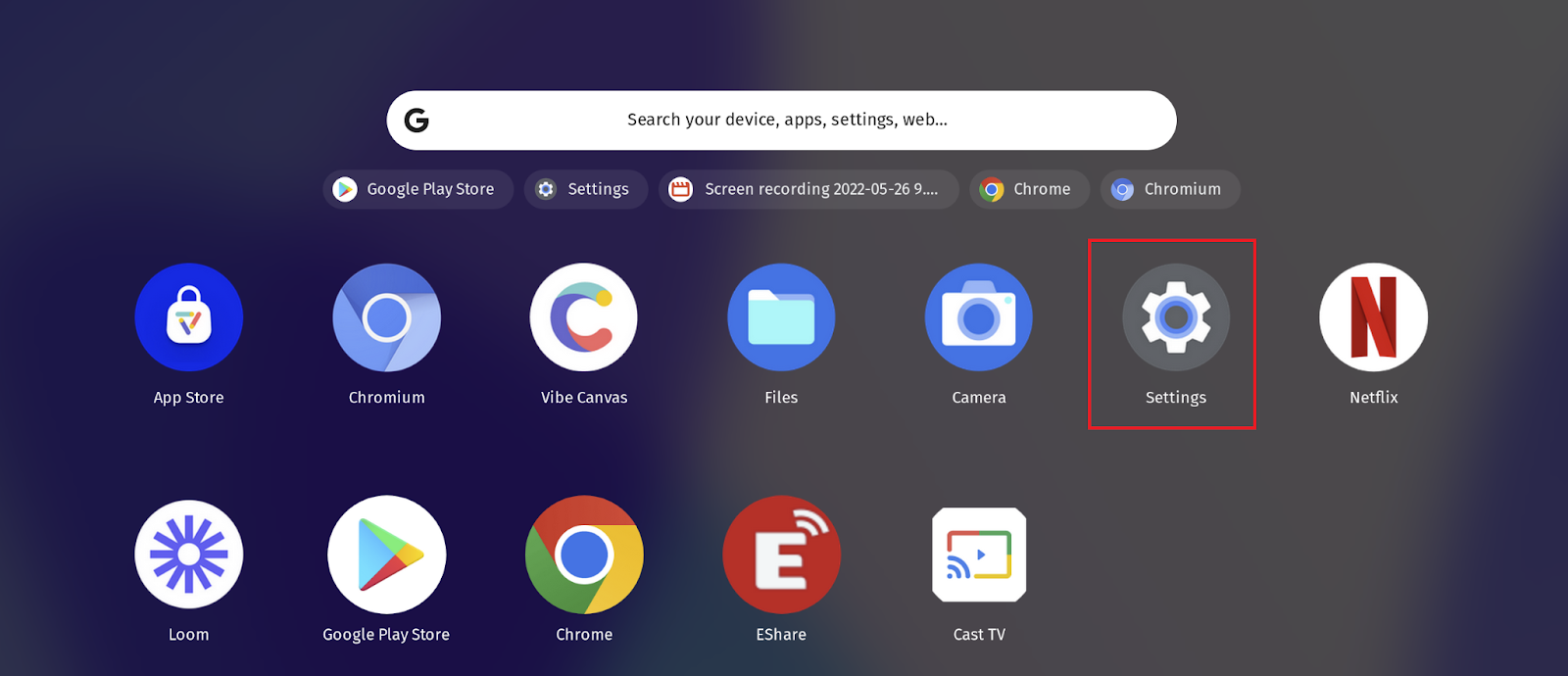
Step 2: Click the Device tab and click on "Setup One-Click Video Conference"

Step 3: Select your calendar ecosystem, using Google Calendar for this article

Step 4: Then you will be prompted to choose "**How will this Vibe be used"**, you can continue to set up:
**→ Personal, Dedicated User**
For a personal Vibe board, the user can authorize this Vibe to retrieve and display all of their meetings on the Start screen.
**→ Team, Shared Resource**
A Google Workspace admin may set up this device so it can be used by any team member to schedule meetings. (This option is appropriate if this Vibe will be used in a shared conference room.)

Step 5: Enter your email address and password to log in. If you choose a Shared resource, please contact your IT department for a login

Step 6: Allow the permissions on this page. If you have issues signing in, please ask your IT department to allow permissions

Step 7: Next, select Google Meet or Zoom and sign in


Step 8: Return to the widget on the home page, your calendar should now show

#### **Schedule a meeting**
A Vibe device is recognized as a room on Google Calendar and has the same name as your device name. You can manage your rooms on the [Google Admin Console](http://admin.google.com/).
To schedule a meeting for your device:
1. Go to [Google Calendar](http://calendar.google.com/) and sign in with your Google account.
2. Create a new Event and add a Google Meet or Zoom video conference for it. (For Zoom, you may need to sign in for the first time.)
3. Click **Add room or location**, then choose your Vibe device as a room/location.

4. You will now see the meeting on the home screen of your Vibe. You can click the meeting from the home screen to join.
#### Tips for Zoom
- **Join**
You can join a Zoom meeting by clicking the Zoom meeting on the home screen. In this case, you're joining the meeting as a guest.
- **Host**
The host of any Zoom meeting is the organizer who scheduled the meeting.
- **Sign-in**
It is recommended that you sign in to the Zoom app with your Zoom account. Please make sure you use the same Zoom account on Vibe as on your Google Calendar. In this case, you can join and host meetings on Vibe directly.
- [Vibe Board S1 55″](https://pages.vibe.us/migration/vibe-board-s1-55?hsLang=en#main-content)
- [Getting Started](https://pages.vibe.us/migration/vibe-board-s1-55?hsLang=en#getting-started)
- [Meeting & Presenting](https://pages.vibe.us/migration/vibe-board-s1-55?hsLang=en#meeting-presenting)
- [Troubleshooting](https://pages.vibe.us/migration/vibe-board-s1-55?hsLang=en#troubleshooting)
- [Release History](https://pages.vibe.us/migration/vibe-board-s1-55?hsLang=en#release-history)
- [Vibe Board Pro 75″](https://pages.vibe.us/migration/vibe-board-pro-75?hsLang=en#main-content)
- [Getting Started](https://pages.vibe.us/migration/vibe-board-pro-75?hsLang=en#getting-started)
- [Third party applications](https://pages.vibe.us/migration/vibe-board-pro-75?hsLang=en#third-party-applications)
- [Additional Features](https://pages.vibe.us/migration/vibe-board-pro-75?hsLang=en#additional-features)
- [Troubleshooting](https://pages.vibe.us/migration/vibe-board-pro-75?hsLang=en#troubleshooting)
- [Buyer's FAQ](https://pages.vibe.us/migration/vibe-board-pro-75?hsLang=en#buyers-faq)
- [Release History](https://pages.vibe.us/migration/vibe-board-pro-75?hsLang=en#release-history)
- [Vibe Board 55"](https://pages.vibe.us/migration/vibe-board-55?hsLang=en#main-content)
- [Getting Started](https://pages.vibe.us/migration/vibe-board-55?hsLang=en#getting-started)
- [Release History](https://pages.vibe.us/migration/vibe-board-55?hsLang=en#release-history)
- [Troubleshooting](https://pages.vibe.us/migration/vibe-board-55?hsLang=en#troubleshooting)
- [Vibe SmartCam C1](https://pages.vibe.us/migration/vibe-smartcam-c1?hsLang=en#main-content)
- [Getting Started](https://pages.vibe.us/migration/vibe-smartcam-c1?hsLang=en#getting-started)
- [Troubleshooting](https://pages.vibe.us/migration/vibe-smartcam-c1?hsLang=en#troubleshooting)
- [Release History](https://pages.vibe.us/migration/vibe-smartcam-c1?hsLang=en#release-history)
- [Vibe Product FAQ](https://pages.vibe.us/migration/vibe-product-faq?hsLang=en#main-content)
- [Pricing & How to Order](https://pages.vibe.us/migration/vibe-product-faq?hsLang=en#pricing-how-to-order)
- [Hardware](https://pages.vibe.us/migration/vibe-product-faq?hsLang=en#hardware)
- [Accessories](https://pages.vibe.us/migration/vibe-product-faq?hsLang=en#accessories)
- [Software](https://pages.vibe.us/migration/vibe-product-faq?hsLang=en#software)
- [Shipping](https://pages.vibe.us/migration/vibe-product-faq?hsLang=en#shipping)
- [Additional FAQs](https://pages.vibe.us/migration/vibe-product-faq?hsLang=en#additional-faqs)
- [What's New?](https://pages.vibe.us/migration/whats-new?hsLang=en#main-content)
- [Vibe Board S1 55"](https://pages.vibe.us/migration/whats-new?hsLang=en#vibe-board-s1-55)
- [Vibe Board Pro 75″](https://pages.vibe.us/migration/whats-new?hsLang=en#vibe-board-pro-75)
- [Vibe Board V1 55″](https://pages.vibe.us/migration/whats-new?hsLang=en#vibe-board-v1-55)
- [Vibe SmartCam C1](https://pages.vibe.us/migration/whats-new?hsLang=en#vibe-smartcam-c1)
- [Canvas 2.0](https://pages.vibe.us/migration/whats-new?hsLang=en#canvas-2-0)
- [Which Vibe Model do I own?](https://pages.vibe.us/migration/which-vibe-model-do-i-own?hsLang=en)
- [Vibe Software](https://pages.vibe.us/migration/vibe-software?hsLang=en#main-content)
- [Canvas 2.0](https://pages.vibe.us/migration/vibe-software?hsLang=en#canvas-2-0)
- [Vibe One](https://pages.vibe.us/migration/vibe-software?hsLang=en#vibe-one)
- [Vibe Cast](https://pages.vibe.us/migration/vibe-software?hsLang=en#vibe-cast)
- [Vibe Admin Console](https://pages.vibe.us/migration/vibe-software?hsLang=en#vibe-admin-console)
- [Default HubSpot Blog](https://vibe-2.hubspotpagebuilder.com/)
[](https://knowledge.vibe.us)
Vibe Knowledge Base
Copyright © 2026, Vibe Inc.