---
title: How to set up one-click video conferencing with Outlook Calendar
description: This new feature is available to customers who would like to participate in beta testing.
---
[Skip to content](https://pages.vibe.us/migration/one-click-vc-microsoft#main-content)
English
Show submenu for translations
[Submit a Support Ticket Here](https://pages.vibe.us/migration/kb-tickets/new?hsLang=en)
![Vibe\_logo\_RGB\_NoText.png\]](https://pages.vibe.us/hs-fs/hubfs/Vibe_logo_RGB_NoText.png?height=40&name=Vibe_logo_RGB_NoText.png)
- [Default HubSpot Blog](https://vibe-2.hubspotpagebuilder.com/)
Open main navigation
Close main navigation
- [Default HubSpot Blog](https://vibe-2.hubspotpagebuilder.com/)
- English
Show submenu for translations
- [Submit a Support Ticket Here](https://pages.vibe.us/migration/kb-tickets/new)
- Go to Vibe.us
Go to Vibe.us
Hello! How can we help you?
- There are no suggestions because the search field is empty.
1. [Vibe Knowledge Base](https://pages.vibe.us/migration?hsLang=en)
2. [Vibe Product FAQ](https://pages.vibe.us/migration/vibe-product-faq?hsLang=en)
3. [Software](https://pages.vibe.us/migration/vibe-product-faq?hsLang=en#software)
# How to set up one-click video conferencing with Outlook Calendar
## This new feature is available to customers who would like to participate in beta testing.
Vibe now supports one-click video conferencing with Google Calendar or Outlook Calendar. This feature enables users to start a meeting with a single click on your Vibe's home screen.
If you wish to set up one-click VC with **Google Calendar**, please refer to this [help article](https://knowledge.vibe.us/1-click-vc-google).
Follow these step-by-step instructions to set up one-click VC with **Outlook Calendar**:
**Requirements for setup**
- Own a Vibe board device
- Be a current **paid user** of MS Teams for video conferencing
- Have a Microsoft account
- Go to **Settings - Experimental - Video Conference** and make sure you have enabled **One-Click Video Conference**.
- Make sure you're using the default home screen. To set up your home screen, go to **Settings - Screen Saver - Themes** and choose **Home Screen**.
### 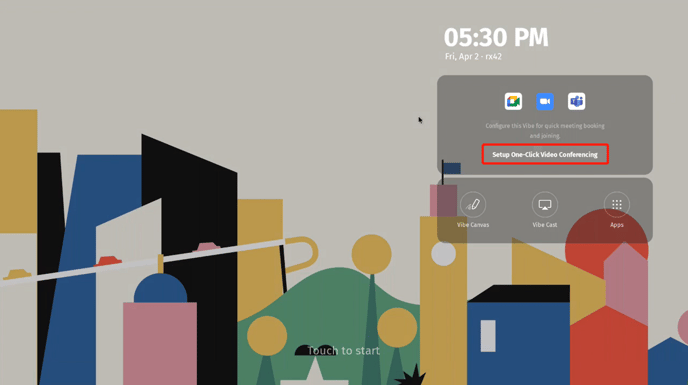
When the **Setup One-Click Video Conferencing** prompt appears on your screen, you can continue to set up:
→ **[on a personal Vibe device](https://pages.vibe.us/migration/one-click-vc-microsoft#personal)**
For a personal Vibe board, the user can authorize this Vibe to retrieve and display all of their meetings on the Start screen.
→ [**on a team Vibe device as a shared resource**](https://pages.vibe.us/migration/one-click-vc-microsoft#meetingroom)
A Microsoft admin may set up this device so it can be used by any team member to schedule meetings. (This option is appropriate if the Vibe will be used in a shared conference room.)
### **One-click VC on a personal or dedicated Vibe board**
#### How to set up with Outlook Calendar
1. Click the **Setup One-Click Video Conferencing** prompt on the home screen. A VC configuration page will appear in Chrome.
2. Choose **Outlook Calendar → Personal, Dedicated User**. Sign in with your Microsoft account and click **Accept** on the permission request page.
3. Your meetings will show up on the home screen of the Vibe board. You can simply click to join.
#### Schedule a meeting via Outlook Calendar
1. Go to Outlook Calendar and sign in with your Microsoft account.
2. Schedule an event on your Outlook Calendar and set a Teams meeting for it.
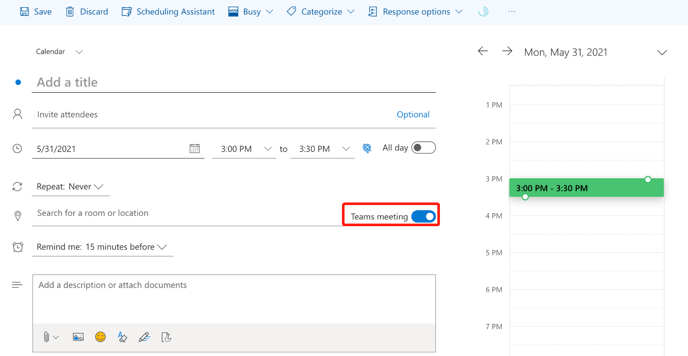
**Note**: Please first enable "Teams meeting" on your Outlook Calendar (shown below).
3. The meeting will appear on the home screen of your Vibe board. You can simply click to join.
#### Schedule a meeting via Microsoft Teams app
1. Launch Microsoft Teams and sign in with your Microsoft account.
2. Select the "Calendar" option in the left sidebar
3. Schedule an event on your Outlook Calendar and set a Teams meeting for it.
4. The meeting will be shown on the home screen of your Vibe board, and you can simply click to join.
### **One-click VC on a team Vibe device (shared resource)**
**Note:** If you do not have a Microsoft admin account, you may set up a dedicated email account for this Vibe device. Then, you can follow the setup steps for [a personal or dedicated Vibe device](https://web.archive.org/web/20210618055657/https://knowledge.vibe.us/one-click-vc-microsoft#personal) and still display the team's meeting agenda on the Start screen.
#### Setup with Outlook Calendar
1. Click the **Setup One-Click Video Conferencing** button on the home screen. A VC configuration page will appear in Chrome.
2. Choose **Outlook Calendar → Team, Shared Resource**. Sign in with your Microsoft account and click **Accept** on the permission request page.
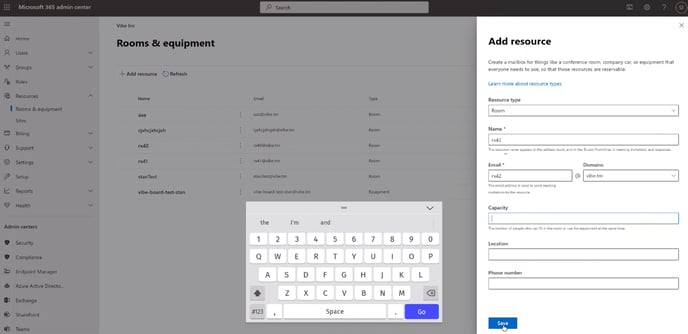
3. You will see a link to Microsoft 365 Admin Center to add resources manually for this device. Write down the name and email we provide.
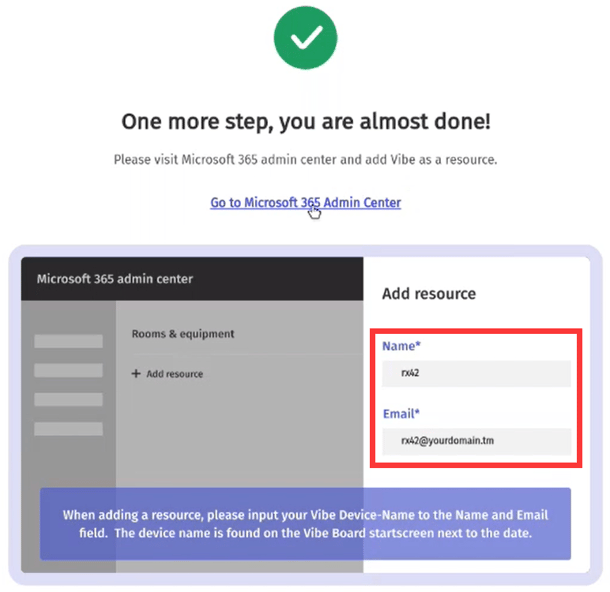
4. Go to Microsoft 365 Admin Center, and open **Resources - Rooms & equipment** on the sidebar. Click **Add resource**.
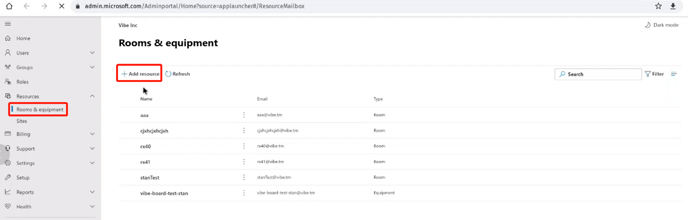
5. Fill in the **Name** and **Email** field with the correct information we provided. It will take a few moments until the new resource is recognized in your Outlook Calendar.
- [Vibe Board S1 55″](https://pages.vibe.us/migration/vibe-board-s1-55?hsLang=en#main-content)
- [Getting Started](https://pages.vibe.us/migration/vibe-board-s1-55?hsLang=en#getting-started)
- [Meeting & Presenting](https://pages.vibe.us/migration/vibe-board-s1-55?hsLang=en#meeting-presenting)
- [Troubleshooting](https://pages.vibe.us/migration/vibe-board-s1-55?hsLang=en#troubleshooting)
- [Release History](https://pages.vibe.us/migration/vibe-board-s1-55?hsLang=en#release-history)
- [Vibe Board Pro 75″](https://pages.vibe.us/migration/vibe-board-pro-75?hsLang=en#main-content)
- [Getting Started](https://pages.vibe.us/migration/vibe-board-pro-75?hsLang=en#getting-started)
- [Third party applications](https://pages.vibe.us/migration/vibe-board-pro-75?hsLang=en#third-party-applications)
- [Additional Features](https://pages.vibe.us/migration/vibe-board-pro-75?hsLang=en#additional-features)
- [Troubleshooting](https://pages.vibe.us/migration/vibe-board-pro-75?hsLang=en#troubleshooting)
- [Buyer's FAQ](https://pages.vibe.us/migration/vibe-board-pro-75?hsLang=en#buyers-faq)
- [Release History](https://pages.vibe.us/migration/vibe-board-pro-75?hsLang=en#release-history)
- [Vibe Board 55"](https://pages.vibe.us/migration/vibe-board-55?hsLang=en#main-content)
- [Getting Started](https://pages.vibe.us/migration/vibe-board-55?hsLang=en#getting-started)
- [Release History](https://pages.vibe.us/migration/vibe-board-55?hsLang=en#release-history)
- [Troubleshooting](https://pages.vibe.us/migration/vibe-board-55?hsLang=en#troubleshooting)
- [Vibe SmartCam C1](https://pages.vibe.us/migration/vibe-smartcam-c1?hsLang=en#main-content)
- [Getting Started](https://pages.vibe.us/migration/vibe-smartcam-c1?hsLang=en#getting-started)
- [Troubleshooting](https://pages.vibe.us/migration/vibe-smartcam-c1?hsLang=en#troubleshooting)
- [Release History](https://pages.vibe.us/migration/vibe-smartcam-c1?hsLang=en#release-history)
- [Vibe Product FAQ](https://pages.vibe.us/migration/vibe-product-faq?hsLang=en#main-content)
- [Pricing & How to Order](https://pages.vibe.us/migration/vibe-product-faq?hsLang=en#pricing-how-to-order)
- [Hardware](https://pages.vibe.us/migration/vibe-product-faq?hsLang=en#hardware)
- [Accessories](https://pages.vibe.us/migration/vibe-product-faq?hsLang=en#accessories)
- [Software](https://pages.vibe.us/migration/vibe-product-faq?hsLang=en#software)
- [Shipping](https://pages.vibe.us/migration/vibe-product-faq?hsLang=en#shipping)
- [Additional FAQs](https://pages.vibe.us/migration/vibe-product-faq?hsLang=en#additional-faqs)
- [What's New?](https://pages.vibe.us/migration/whats-new?hsLang=en#main-content)
- [Vibe Board S1 55"](https://pages.vibe.us/migration/whats-new?hsLang=en#vibe-board-s1-55)
- [Vibe Board Pro 75″](https://pages.vibe.us/migration/whats-new?hsLang=en#vibe-board-pro-75)
- [Vibe Board V1 55″](https://pages.vibe.us/migration/whats-new?hsLang=en#vibe-board-v1-55)
- [Vibe SmartCam C1](https://pages.vibe.us/migration/whats-new?hsLang=en#vibe-smartcam-c1)
- [Canvas 2.0](https://pages.vibe.us/migration/whats-new?hsLang=en#canvas-2-0)
- [Which Vibe Model do I own?](https://pages.vibe.us/migration/which-vibe-model-do-i-own?hsLang=en)
- [Vibe Software](https://pages.vibe.us/migration/vibe-software?hsLang=en#main-content)
- [Canvas 2.0](https://pages.vibe.us/migration/vibe-software?hsLang=en#canvas-2-0)
- [Vibe One](https://pages.vibe.us/migration/vibe-software?hsLang=en#vibe-one)
- [Vibe Cast](https://pages.vibe.us/migration/vibe-software?hsLang=en#vibe-cast)
- [Vibe Admin Console](https://pages.vibe.us/migration/vibe-software?hsLang=en#vibe-admin-console)
- [Default HubSpot Blog](https://vibe-2.hubspotpagebuilder.com/)
[](https://knowledge.vibe.us)
Vibe Knowledge Base
Copyright © 2026, Vibe Inc.