![Vibe_logo_RGB_NoText.png]](https://pages.vibe.us/hs-fs/hubfs/Vibe_logo_RGB_NoText.png?height=40&name=Vibe_logo_RGB_NoText.png)
Depending on the operating system of your device, you can screencast to Vibe from Airplay, and Vibe's own casting option from a browser.
Note: Please make sure your device is connected to the same Wi-Fi network as the Vibe board. The best practice will be connecting your device to Vibe HotSpot, which will give you a better performance and more stable connection.
1. For Windows OS
Make sure your VibeOS cannot be lower than 1.2.5.
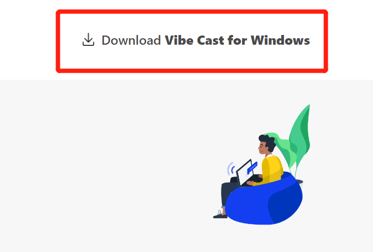
1. Download the Vibe Cast installation package from cast.vibe.us, which is at the top right of the website. Install the app step by step.
2. After install the app successfully, open the Vibe Cast from your PC.
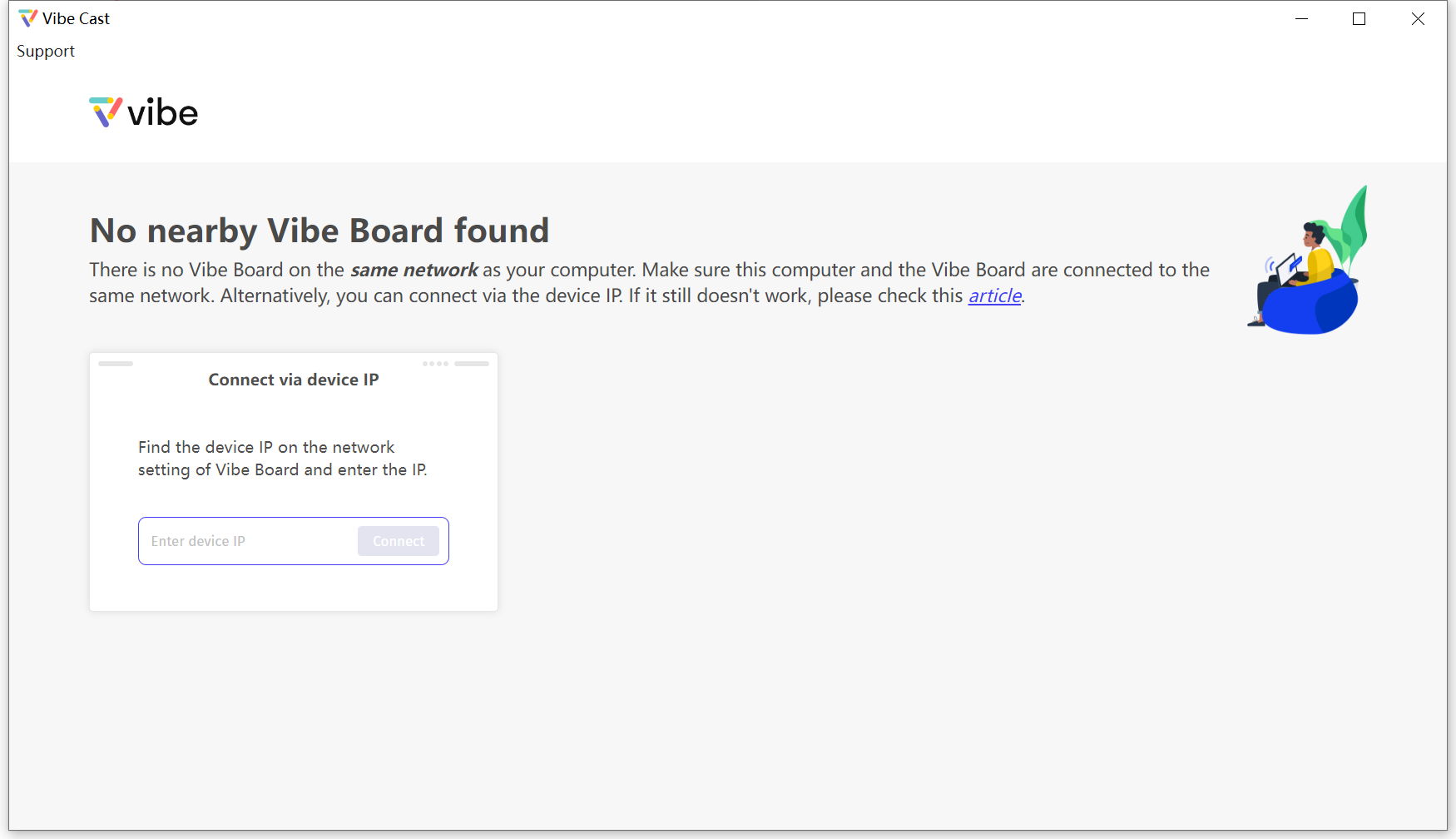
Tips: If you fail to find the available Vibe board in the app, please confirm the network connection and could try to reboot your PC/Vibe board.
3. Then the available Vibe boards will show up in the app. 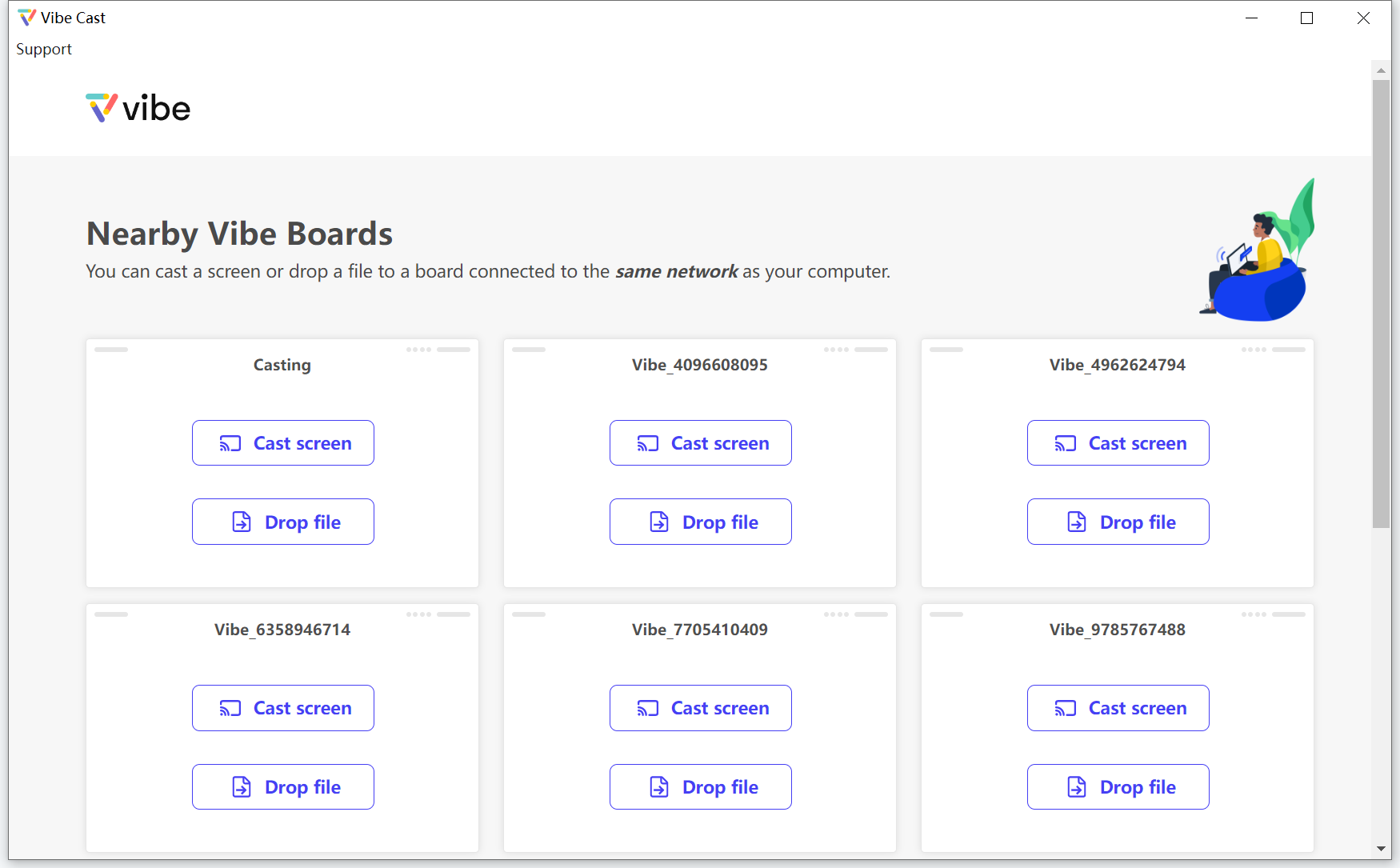
4. Now you are able to "Cast screen" or "Drop file" from your PC to your Vibe board.
2. For Mac / iOS
If you use Apple products that have Airplay capability, simply use Airplay to connect wirelessly to the Vibe board.

3. From a Chrome or Firefox Browser
Vibe has our very own screencasting software you can access using either desktop Chrome or Firefox browser: cast.vibe.us.
Once you go to cast.vibe.us, you may be prompted to install the Vibe Cast Chrome extension.

After you have successfully installed the Chrome extension, see the detected device list and find yours to screencast.

If you can’t find the device directly in the list, type your device's name then enter to cast.

