![Vibe_logo_RGB_NoText.png]](https://pages.vibe.us/hs-fs/hubfs/Vibe_logo_RGB_NoText.png?height=40&name=Vibe_logo_RGB_NoText.png)
- Sign in to your Cloud account on the Vibe Board using the Chromium web browser

- Download the images you want to use on your board. They will download as a zip file if there is more than one.
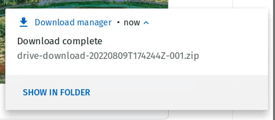
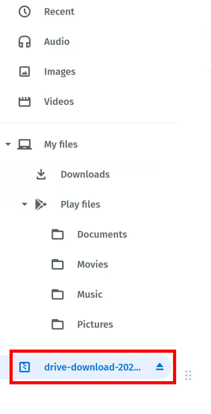
- Open the Files application from the desktop

- Click on the zip file in the list on the left
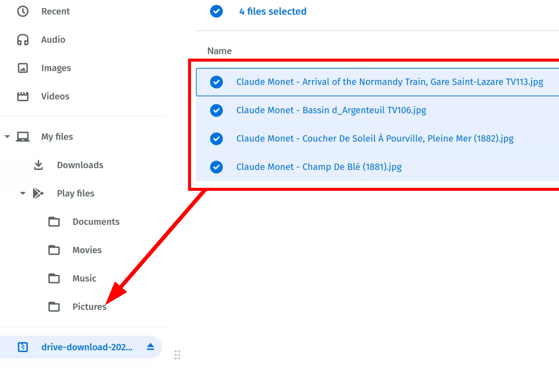
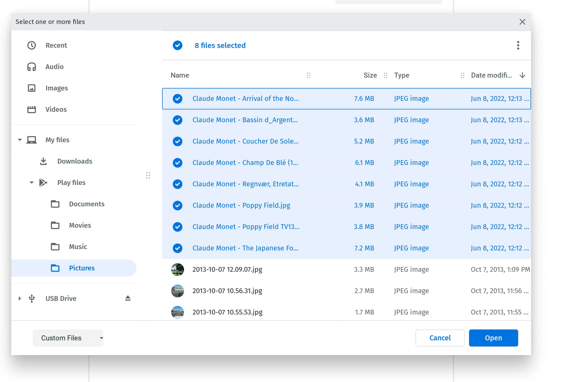
- Highlight all the images and drag them to the Play Files -> Pictures folder
- Click on the up caret on the launch bar and click the Settings Gear icon.

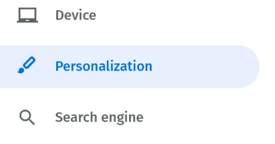
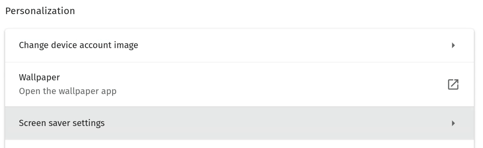
- Click on Personalization
- Click on Screensaver
- Click the Slideshow from photos radio button and click Add images.

- Select the images you wish to use from the Play Files -> Pictures folder and click Open
- Set the idle time until screen saver is played
Enjoy the show!